
Suzuki ISA Map Update Portal for Non-connected Vehicles
Download and install the latest ISA map updates for your multimedia system
END-TO-END CUSTOMER PORTAL
Overview of Map Update Procedure
| Step | Item | Outline |
| Step ① | 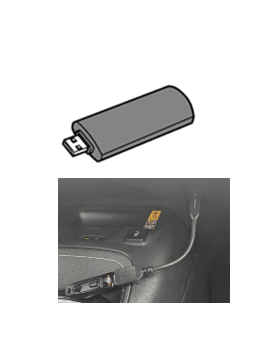 | Prepare USB storage drive to copy the new map data for the update. (Europe ISA map requires 5GB. Europe Embedded Map requires 25GB) Note: You may require a conversion cable depending on your vehicle and your USB storage drive. For example, Suzuki Swace is equipped with USB Type C ports alone. You will require a USB Type C to USB Type A conversion cable if your USB storage drive is Type A. The USB requirements are as below.
|
| Step ② | 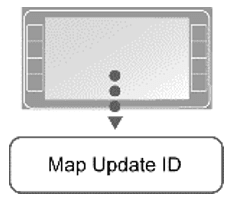 | Check “Map Update ID” and “Map Service Code”.
|
| Step ③ | 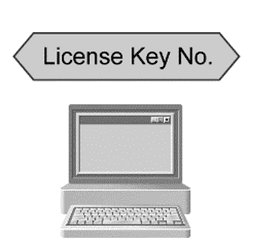 | PC is used to access the https://www.suzuki-isa-map-update.com/ portal via the internet. Choose desired map to download map data to USB and input “Map Update ID” and “Map Service Code”. “License Key Number” will be generated and make sure to record the “License Key” number shown on the screen. Click “Download Map File” to start map download. |
| Step ④ | 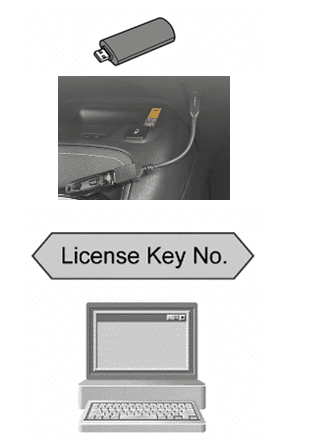 | Insert USB storage drive, input “License Key Number” and Map update will start. |
PART 1: PREPARE REQUIRED INFORMATION
This step is completed using the multimedia system of your Suzuki vehicle.
How to retrieve Map Update ID
1. Select “Navigation”.
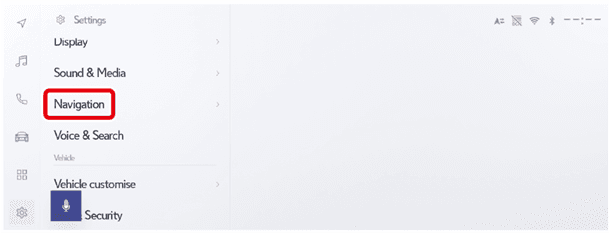
2. Select “Map update”.
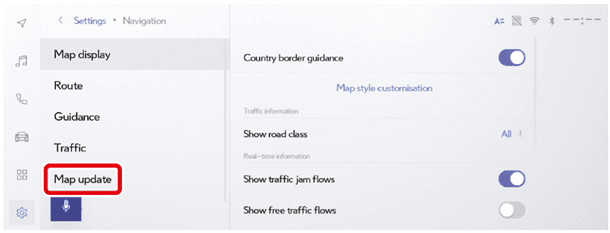
3. Select “Map data info” and check “Map update ID”.
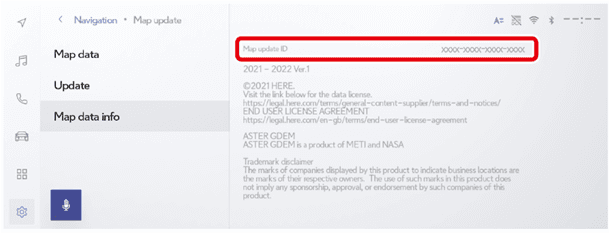
• Make a note of the “Map update ID” as this will be required for Part 2. If “Map Update ID” = xxxx-1xxx-xxxx-xxxx then only select and download the 20GB map type. If “Map Update ID” = xxxx-2xxx-xxxx-xxxx then only select and download the 5GB map type.
How to retrieve Map Service Code
1. Select “Navigation”.
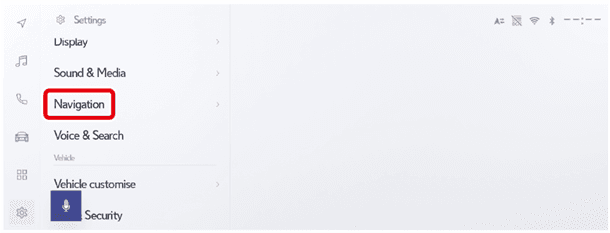
2. Select “Map update”.
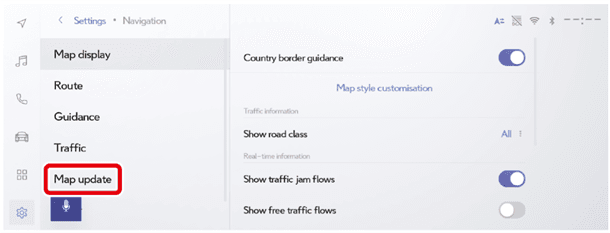
3. In the displayed map data screen, check “Map service code”.
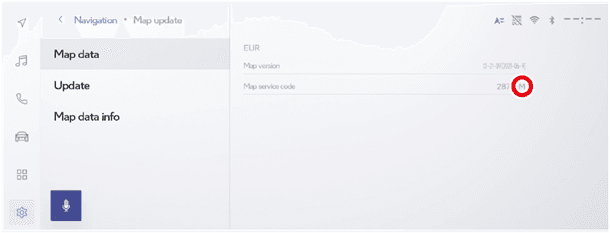
The last digit of the service code indicates the map updating method which should be used. Check the last digit is “M” for the free period (M: Free method, Y: Paid method).
PART 2: DOWNLOAD UPDATE & PREPARE USB
This step is completed using the Suzuki ISA Map Update Portal for Non-connected Vehicles and the information you acquired from your Suzuki vehicle at Part 1.
1. Navigate to Suzuki ISA Map Update Portal for Non-connected Vehicles at https://www.suzuki-isa-map-update.com/
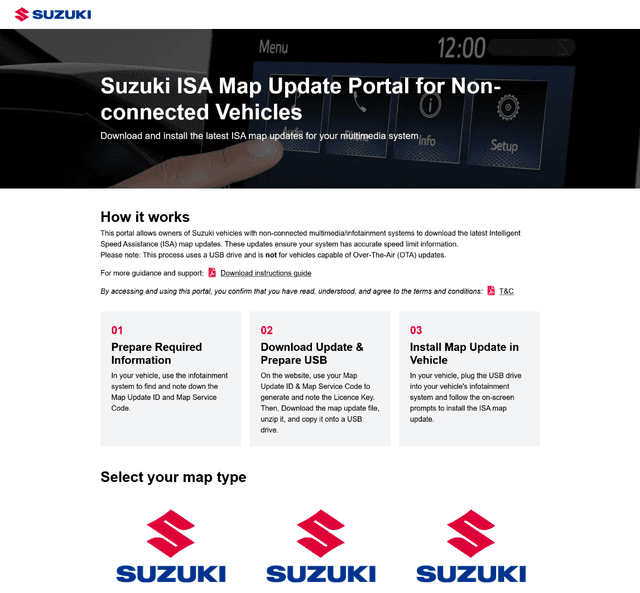
Figure 1: Landing page of Suzuki ISA Map Update Portal for Non-connected vehicles
2. Scroll down to the section titled “Select your map type”
3. Choose the map type suitable for your vehicle and click “Download file”
- ~5 GB ISA update file if the 5th (fifth) digit of your Map Update ID is 2 (left one in below image)
- ~20 GB ISA update file if the 5th (fifth) digit of your Map Update ID is 1 (right one in below image)
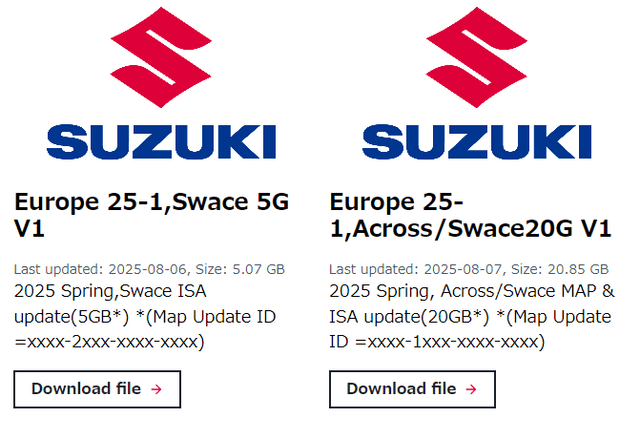
Figure 2: Clicking “Download file” buttons will open a popup screen for downloading your map update
4. Input the information you acquired from your Suzuki vehicle at Part 1
- Input “Map Update ID” to the input field labelled as “Map Update ID” (do not include hyphens)
- Input “Map Service Code” to the input field labelled as “Map Service Code”
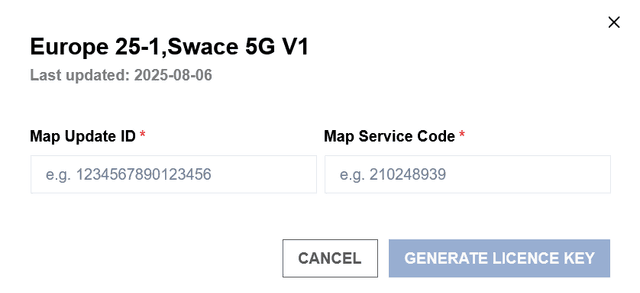
Figure 3: Initial input screen with empty fields
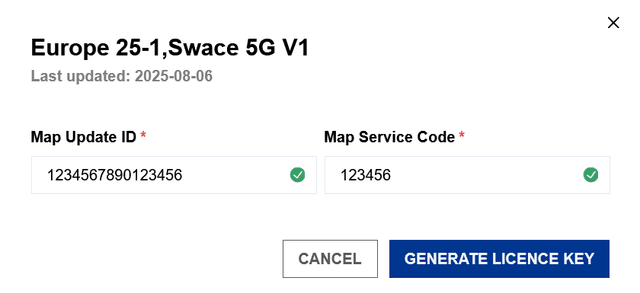
Figure 4: After inputting the information received at Part 1
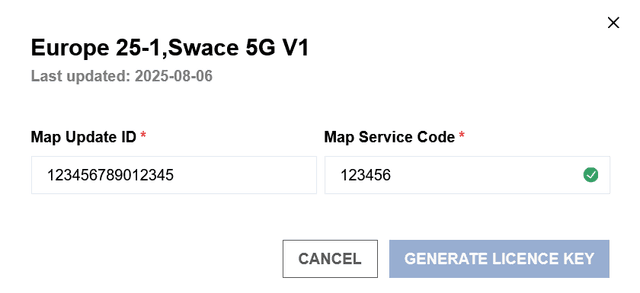
Figure 5: You will not be able to generate a licence key in case an invalid input is provided. In above case, an invalid map update id is provided. Make sure you input the correct information received at Part 1.
5. Click “Generate Licence Key”.
SUCCESSFUL LICENSE KEY GENERATION
- The portal will generate a new “License Key” successfully.
- Please copy your “License Key”, either by:
Copying to clipboardSelecting your license key, right clicking, and clicking “Copy”, or using the designated shortcut command such as Control+C or Command-CClicking the “Copy” buttonPhysically writing it down
You will need your “License Key” during the next step. Make sure you have access to it until you complete Part 3.
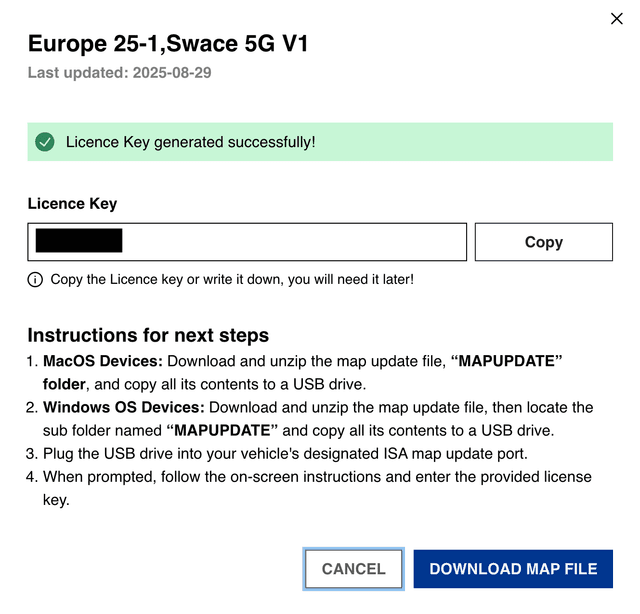
Figure 6: Successful license key generation
UNSUCCESSFUL LICENSE KEY GENERATION
The portal will display an error message.
There can be several reasons, including:
- Incorrect “Map Update Id” or “Map Service Code”
Please confirm you received the correct information at Part 1. - Your vehicle is not eligible for the map type you have chosen.
Please confirm you selected the “Map Type” applicable for your Suzuki vehicle. - Your vehicle is not eligible for a free map update.
Please contact your preferred Suzuki dealer regarding free map update eligibility. - Network connection related issues.
Please ensure your network environment is working as expected and not blocking anything which might keep the portal from working as expected. - Portal or server related issues.
Please contact your preferred Suzuki dealer.
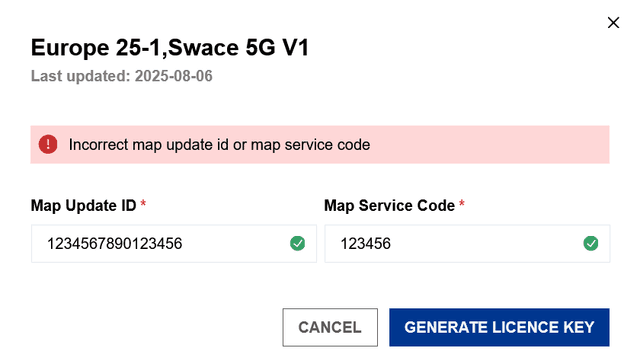
Figure 7: Unsuccessful licence key generation
6. You can now click “Download Map File” button to start downloading your map update file.
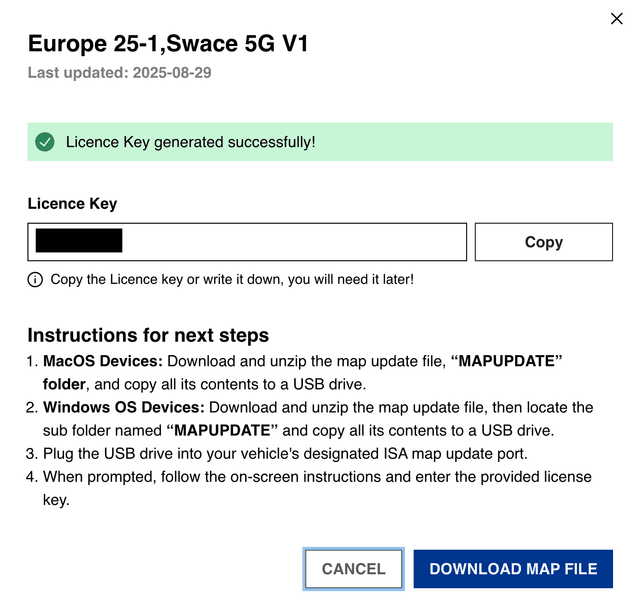
Figure 8: Download the map update file, which is served as a single ZIP file.
7. After the download has been completed, insert the USB storage device into the USB port of your device.
Please make sure your device has an adequate amount of empty space available depending on your map type. We recommend an empty USB storage device with:
- Empty storage formatted as FAT32
- 32GB of memory
You may require an adapter depending on the compatibility of your device’s USB connector and the port of your Suzuki vehicle.
8. Unzip the map update file you have downloaded at Step 6 and follow either Step 9 OR Step 10 depending on your device operating system.
9. MacOS Devices: Copy the unzipped map update file, “MAPUPDATE” folder, and all its contents directly to the USB storage device.

Figure 9: Example of downloaded zipped map update file on MacOS device.

Figure 10: Example of unzipped map update file on MacOS device; “MAPUPDATE” folder as a top-level folder.
10. Windows OS Devices: When the map update file is unzipped, Windows OS will create a top-level folder matching the Zip file name, open the top-level folder and locate the sub folder named “MAPUPDATE”, then copy the MAPUPDATE folder and all its contents directly to the USB storage device.
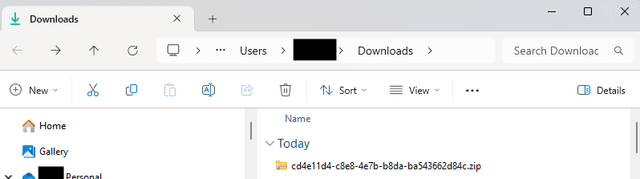
Figure 11: Example of downloaded zipped map update file on Windows OS device.
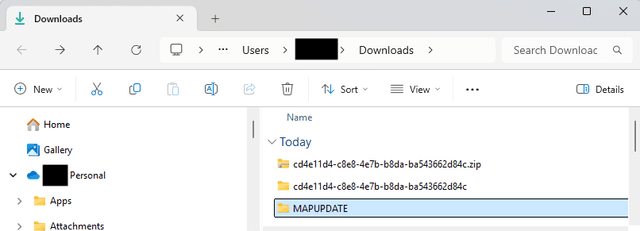
Figure 12: Example of unzipped map update file on Windows OS device; “MAPUPDATE” folder as a sub folder.
11. Unplug the USB storage device once copy is complete.
PART 3: INSTALL MAP UPDATE IN VEHICLE
This step is completed using the USB drive which contains the map update file and the license key you acquired from Suzuki ISA Map Update Portal for Non-connected Vehicles at Part 2, and the multimedia system of your Suzuki vehicle.
Firmly depress the brake pedal and then press the POWER button, the below READY indicator is then displayed.
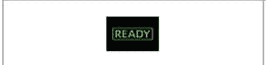
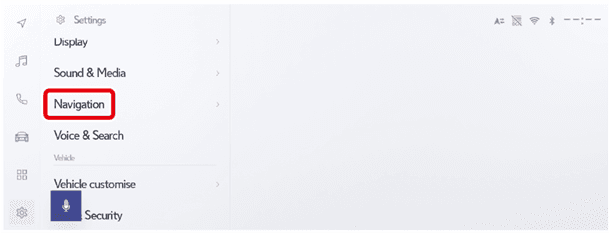
1. Select the settings icon and select “Navigation”.
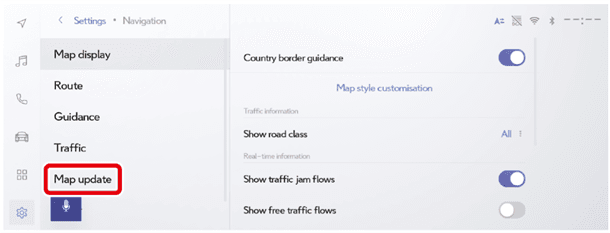
2. Select “Map update”.
3. Connect the USB storage device which contains the unzipped map update file and select “Update”.
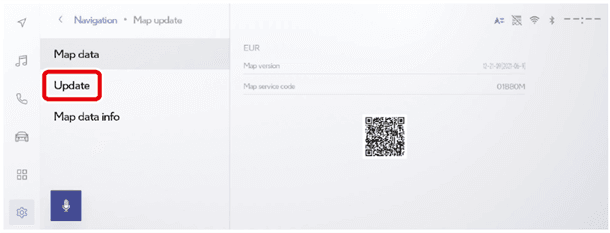
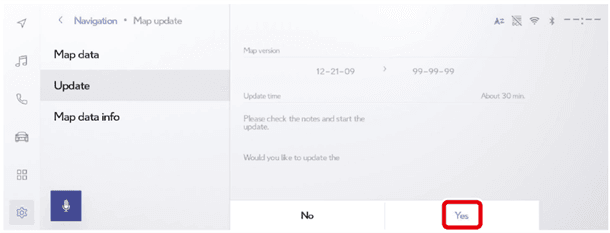
4. Select “Yes” to transition to a screen where the version can be confirmed.
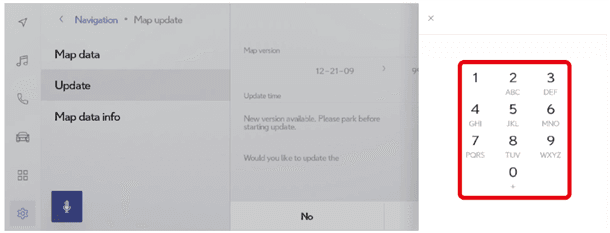
5. Enter the license key number.
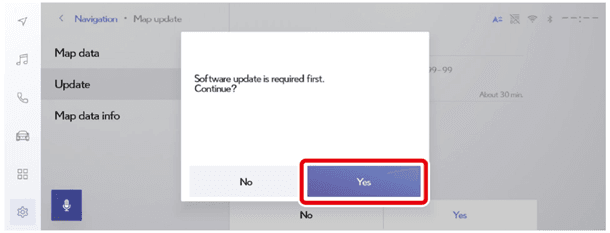
- When installing the latest version:
Select “Yes” when a notification indicating that a software update is necessary is displayed.
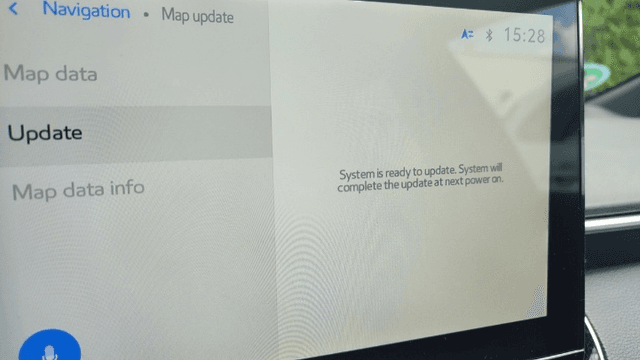
6. Turn off your vehicle by pressing the POWER button
7. Turn on your vehicle by firmly depressing the brake pedal and then pressing the POWER button once more.
8. ISA map update starts.
9. Wait until the map update has been completed.
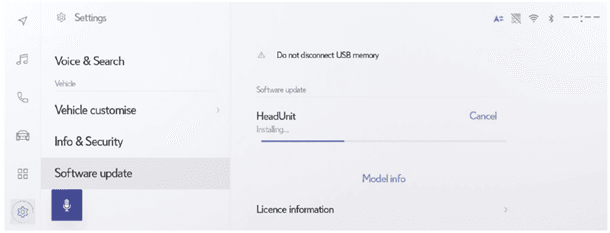
10. After the map update has been completed, turn the ignition switch off by pressing the POWER button and then to Adaptive Cruise Control (ACC).
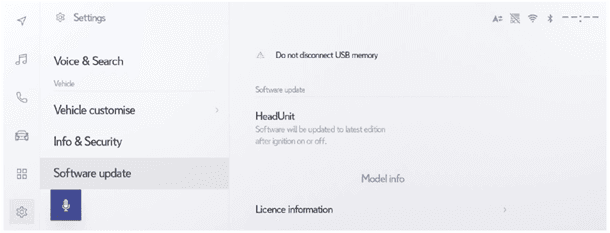
When the latest version has already been installed:
Turn the ignition switch off by pressing the POWER button and then to Adaptive Cruise Control (ACC) after the following screen is displayed.
11. After startup, select the map button and wait until the screen transitions to the below screen.
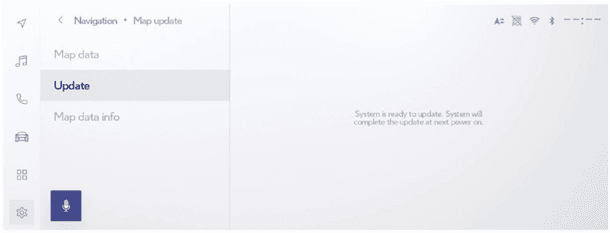
When installing the latest version:
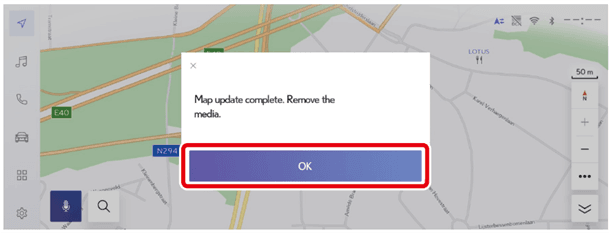
When the following screen is displayed, select "OK".
Do not remove the USB storage device until the map update has completed.
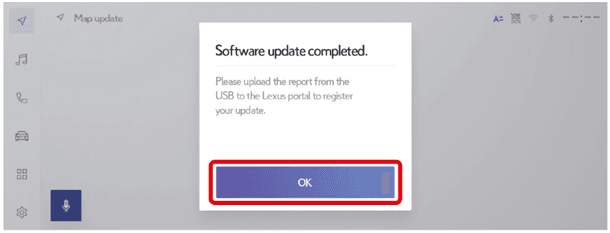
12. Select “OK” and disconnect the USB storage device.